
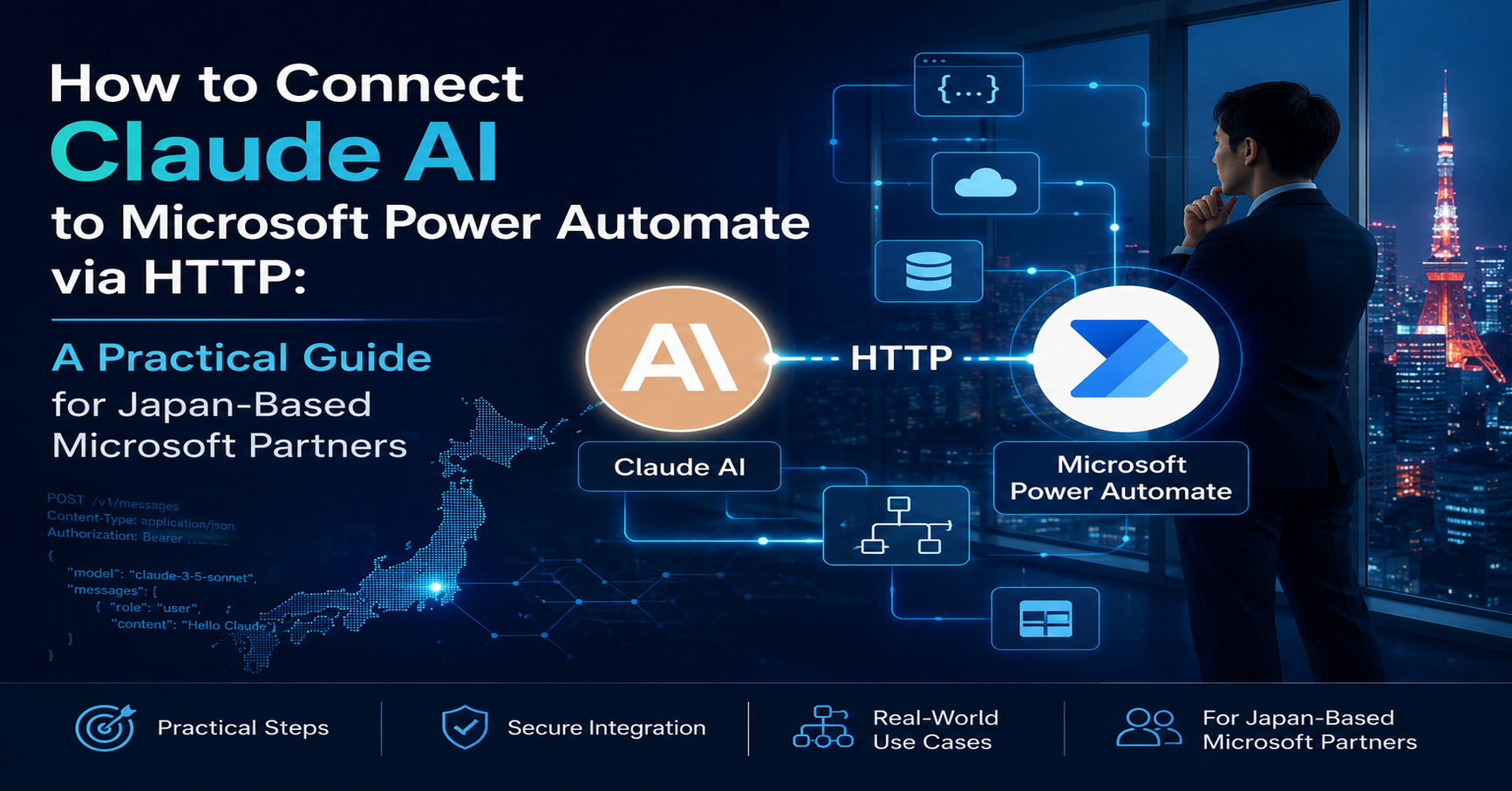
This blog will cover the following points:
- Introduction
- Why Rule-Based Automation Is No Longer Enough for Japan Operations
- What Makes Claude AI the Right Fit for Microsoft Workflows
- Two Ways to Connect Claude to Power Automate (And When to Use Each)
- The Step-by-Step HTTP Integration That Actually Works in Production
- What This Looks Like for a Japan-Based Microsoft Partner
- Security and Compliance You Cannot Afford to Overlook
- Where to Start If You Are Already on the Microsoft Stack
Introduction: AI Automation Is No Longer Optional for Japan Operations
Foreign companies operating in Japan face a uniquely demanding operational environment. Bilingual document processing, compliance-heavy approval chains, and the need to bridge Japanese and international business practices create workflow bottlenecks that traditional automation cannot fully resolve.
Microsoft Power Automate has long been the go-to tool for workflow automation within the Microsoft 365 and Dynamics 365 ecosystem. But as business complexity grows, rule-based flows alone are no longer enough. This is where Claude AI, Anthropic’s advanced large language model, changes the equation.
By connecting Claude AI to Power Automate via HTTP, Japan-based Microsoft partners can inject genuine language intelligence into their existing workflows. No separate AI platform. No new software stack. Just a clean integration built on tools your team already uses.
This guide walks through exactly how to do it.
Why Claude AI and Not a Generic AI Connector?
Before diving into the setup, it is worth understanding why Claude specifically makes sense for enterprise automation in Japan.
Unlike generic AI connectors, Claude excels at nuanced instruction-following, handling long documents, and producing structured, consistent outputs. For Japan-based operations, this matters because:
- Japanese business communications require precision and formality that generic models often miss
- Contract documents, vendor agreements, and compliance reports in bilingual environments tend to be long and complex
- Finance and ERP teams using Business Central need AI outputs that are clean, structured, and ready to act on
Claude’s API is also clean and predictable, making it straightforward to call from Power Automate’s HTTP action without middleware platforms.
Two Ways to Connect Claude to Power Automate
There are two primary approaches, and the right choice depends on how much control and reusability your team needs.
Option 1: HTTP Action (Direct API Call) Best for quick, single-purpose flows. You configure the HTTP action directly inside your Power Automate flow to call Anthropic’s /v1/messages endpoint. No connector setup required. Ideal for prototyping or low-frequency, high-value tasks.
Option 2: Custom Connector Best for teams building multiple flows that all need Claude. You create a reusable Custom Connector in the Power Automate portal once, and every flow in your environment can call it cleanly. This is the approach recommended for production deployments.
Step-by-Step: Connecting Claude via the HTTP Action
Step 1: Get Your Anthropic API Key
Log in to the Anthropic Console at console.anthropic.com. Create a developer account if you do not already have one, and generate an API key. Store this key securely, ideally in Azure Key Vault or Power Automate’s built-in secure inputs feature. Never expose it in plain text within a flow.
Step 2: Set Up Your Power Automate Flow
In the Power Automate portal, create a new automated or scheduled cloud flow. Add the trigger appropriate to your use case: a new row in Dataverse, an incoming SharePoint form submission, a Business Central approval event, or a scheduled trigger.
Step 3: Add the HTTP Action
Add a new step and search for “HTTP.” Select the HTTP action (not the HTTP + Swagger connector). Configure it as follows:
- Method: POST
- URI: https://api.anthropic.com/v1/messages
- Headers:
- Content-Type: application/json
- x-api-key: your Anthropic API key (stored securely)
- anthropic-version: 2023-06-01
- Body: A JSON payload specifying the model, max tokens, and your message content. Use dynamic content from earlier steps to pass real business data into your prompt.
Step 4: Parse the Response
Add a “Parse JSON” step after the HTTP action. Use Claude’s response schema to extract the generated text cleanly into a usable variable. This structured output can then feed directly into Dynamics 365 fields, SharePoint lists, email drafts, or Power BI datasets.
Step 5: Act on the Output
Route the parsed response into your downstream business system. Common actions at this stage include updating a Business Central record, sending a formatted Teams or Outlook notification, appending a summarised entry to a SharePoint list, or triggering an approval workflow with AI-generated context already attached.
Real-World Use Cases for Japan Operations
Understanding how this integration works in practice makes the value tangible. Here are three scenarios directly relevant to Japan-based Microsoft partners and their clients:
Bilingual Document Summarisation A foreign manufacturer in Japan receives lengthy Japanese-language vendor contracts. A Power Automate flow monitors a SharePoint folder, sends each new document to Claude via HTTP for bilingual summarisation, and writes the output to a Dataverse table. The procurement team reviews a structured English summary in minutes rather than hours.
Business Central Invoice Classification An ERP team using Dynamics 365 Business Central processes hundreds of vendor invoices monthly. Claude classifies each invoice by category, flags anomalies, and suggests the correct general ledger code. The HTTP call is triggered automatically when a new invoice record is created in Business Central.
Customer Inquiry Triage via Microsoft Forms A Japanese subsidiary uses Microsoft Forms to collect customer support requests in both Japanese and English. Power Automate sends each submission to Claude, which categorises the request, assesses urgency, and drafts a first-response email. The flow routes high-priority cases directly to the support manager via Teams.
Security and Compliance Considerations
For enterprise deployments, particularly in regulated Japanese industries, security cannot be an afterthought. Key practices include:
- Store API keys in Azure Key Vault and reference them using managed identity, not hardcoded strings
- Enable secure inputs and outputs on the HTTP action to prevent API keys appearing in run history
- Review Anthropic’s data processing terms alongside your organisation’s data residency requirements
- For highly sensitive data, consider building a middleware layer in Azure Functions so raw business data never leaves your Microsoft tenant
Why This Approach Beats Third-Party Connectors
Platforms that broker the Claude to Power Automate connection can work well for simple flows. But for Japan-based Microsoft partners managing ERP, CRM, and reporting environments, direct HTTP integration offers meaningful advantages:
- Full control over prompt structure, model version, and temperature settings
- No additional vendor in the data chain
- Lower per-call cost at scale compared to brokered connectors
- Easier to audit and debug within the native Power Automate run history
- Native compatibility with Business Central, Dataverse, and the full Microsoft 365 stack
Conclusion: Practical AI Automation, Built for Japan
Connecting Claude AI to Microsoft Power Automate via HTTP is not a theoretical exercise. It is a production-ready integration that Japan-based operations teams and Microsoft partners can deploy today, with the tools and licences they already have.
The combination of Claude’s language intelligence and Power Automate’s connectivity to the Microsoft ecosystem creates workflows that do not just move data but understand it. For foreign companies navigating Japan’s complex business environment, that distinction matters.
At Sysamic K.K., we specialise in exactly this kind of intelligent automation. As a Tokyo-based Microsoft Dynamics 365 Business Central partner, we implement Power Automate, Power BI, and AI-driven workflows for European and North American companies operating in Japan. Our team has hands-on experience building integrations that connect the Microsoft stack to modern AI APIs, helping clients reduce manual effort, improve decision quality, and operate more confidently in the Japanese market.
To learn how Sysamic can support your digital transformation in Japan, email us at info@sysamic.com or fill out our contact form here to get in touch.