
Introduction
Business Central holds your financial and operational data, and Power BI turns it into reports. Add Copilot to both, and teams can ask questions in plain language instead of building reports by hand. The catch is that “Copilot” does not mean one product with one price. Business Central has its own Copilot, Power BI has another, and each has different licensing rules and limits. This first part of our Power BI Business Central series explains what you need before you start, so there are no surprises on the invoice.
This blog will cover the following points
- The difference between Copilot in Business Central and Copilot in Power BI
- Business Central Copilot licensing and setup
- Power BI apps for Business Central and the licenses they need
- Requirements for Copilot in Power BI, including Fabric capacity
- Limits to plan around, including language and data location
- How Sysamic can help
Two Copilots, Two Sets of Rules
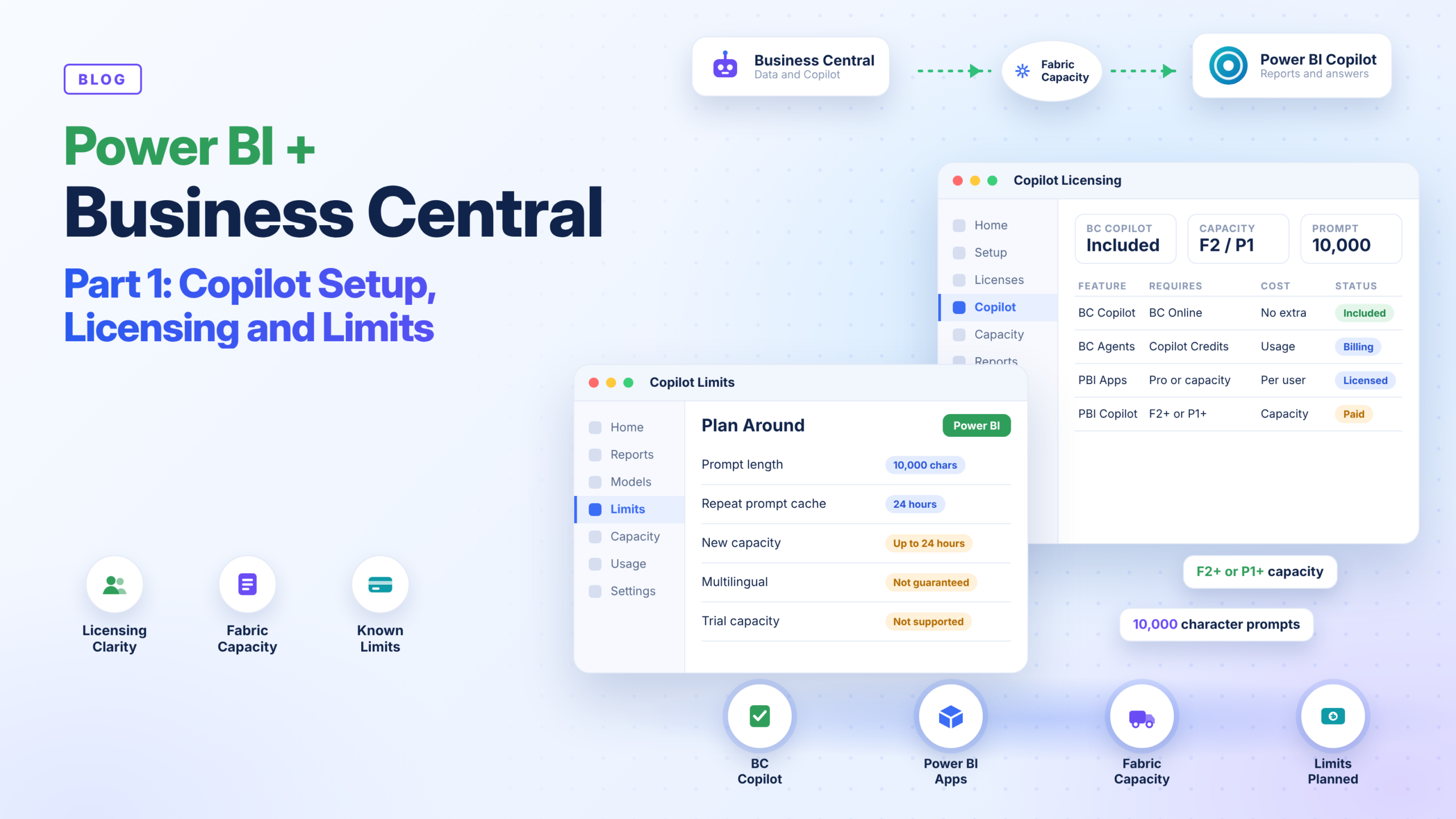
Copilot in Business Central helps users inside the ERP, with chat, suggestions, and agents. Copilot for Power BI works on top of your reports and semantic models. They are licensed separately, so budget for each one.
Business Central Copilot: Licensing and Setup
Assistive Copilot features are included in your Business Central license at no additional charge, with no minimum user count. Copilot runs on Business Central Online only, so on-premises and private cloud deployments are not supported. Some capabilities must be switched on under Copilot and AI capabilities, and availability varies by region and language. Copilot only reads data the signed-in user can already see, so your permission sets still apply. Agents such as the Sales Order, Payables, and Expense agents are different. They consume Copilot Credits, and billing must be configured before activation.
Power BI Apps for Business Central
Microsoft provides Power BI apps for finance, sales, purchasing, inventory, manufacturing, projects, and more. Each has a connector app preinstalled in Business Central and a template app installed from Microsoft Marketplace. Microsoft states that Power BI Pro licenses are needed for the person who installs the app, the person who refreshes data, and every viewer, unless you use Premium or Fabric capacity instead. Some articles describe these apps as free, so confirm this before promising it to your finance team. Apps also work per company, so a multi-company group needs a separate install and workspace for each.
Requirements for Copilot in Power BI
Copilot in Power BI needs paid capacity: Fabric F2 or higher, or Power BI Premium P1 or higher. A standard Pro license on its own does not unlock it, and trial capacities are not supported. A Fabric admin must enable the Copilot tenant setting, and the workspace must sit on eligible capacity. If Azure OpenAI is not available in your region, a cross-geo setting lets data be processed outside your geographic boundary, which your compliance team should review first.
Fabric Copilot Capacity
By default, Copilot usage is billed to the capacity that holds the user’s content, which spreads costs around. A Fabric Copilot capacity consolidates that usage on one capacity for easier tracking. It bills only for Copilot’s prompt processing and responses, while querying the semantic model is charged to the model’s own capacity.
Limits to Plan Around
Several limits matter for real deployments:
- Prompt size: each prompt can be up to 10,000 characters.
- Language: multilingual use is not officially supported, so Japanese prompts may work but are not guaranteed.
- Caching: an identical prompt on an unchanged model returns a cached answer for 24 hours.
- Capacity changes: after buying or scaling capacity, Copilot can take up to 24 hours to recognize it.
- Network and region: Private Link and sovereign clouds are not supported, and some regions lack the standalone experience.
- Data quality: unprepared semantic models produce inaccurate answers.
A Practical Setup Order
First, confirm Business Central Online and enable Copilot features. Second, install one Power BI app and verify refresh and permissions. Third, confirm capacity, tenant settings, and your home region. Fourth, prepare the semantic model. Finally, pilot with a small group.
Conclusion
Copilot can make Power BI and Business Central far more useful, but only when licensing, capacity, language, and data preparation are planned together. In Part 2, we will look at building and governing the reports themselves.
Sysamic K.K. is a Tokyo-based Microsoft Dynamics 365 Business Central partner with more than 20 years of experience helping international companies run compliant, well-configured ERP operations in Japan. We review your licensing, set up Power BI apps and Copilot, configure permissions, and align reporting with Japanese business needs, including fiscal calendars. If you want a clear plan before you buy, we would be glad to help. Email us at info@sysamic.com or fill out our contact form here to get in touch.