
Introduction
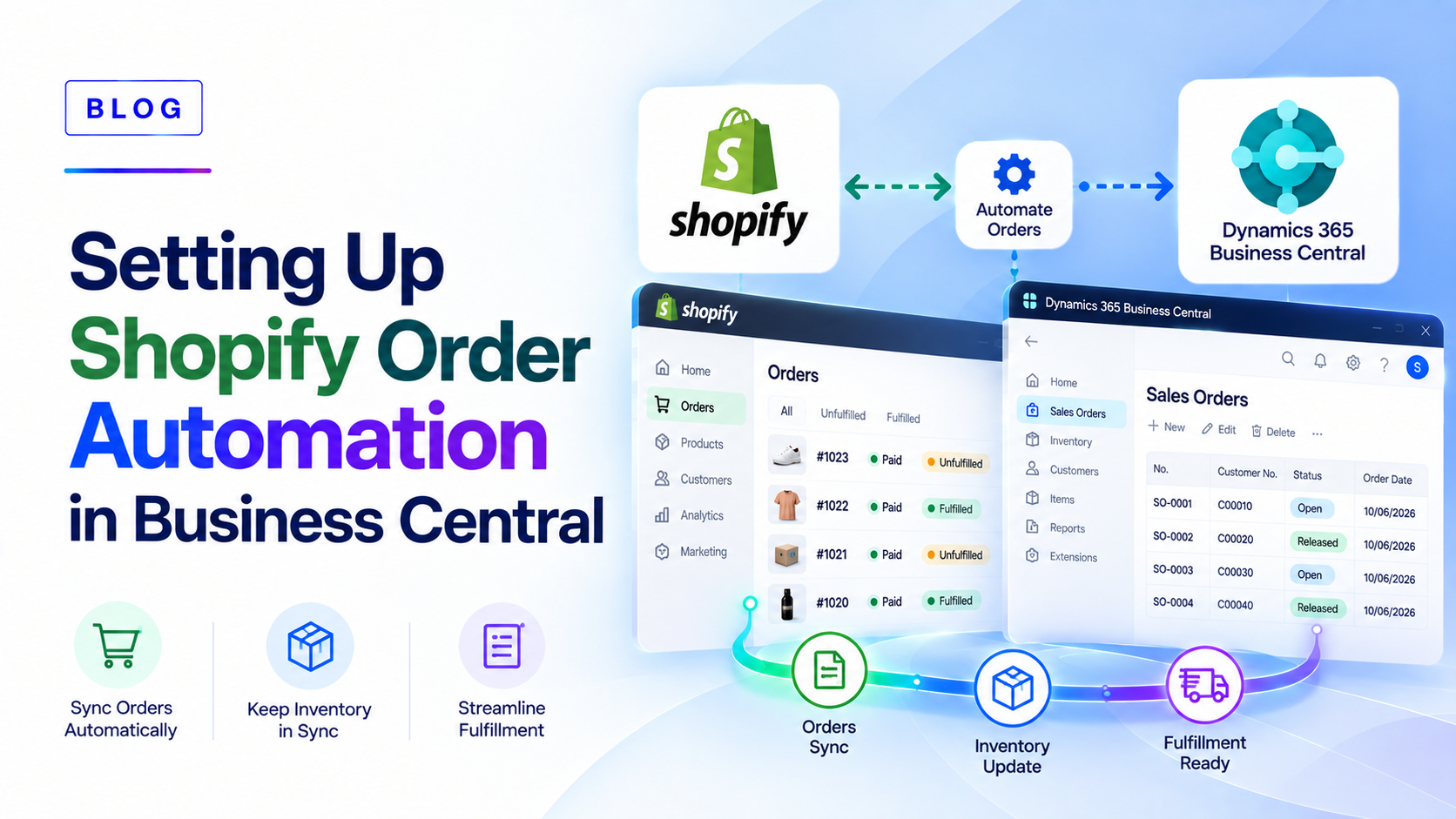
Every Shopify order that is retyped into your ERP costs time and invites errors. Microsoft Dynamics 365 Business Central includes a native Shopify connector that can import orders, create sales documents, and send shipment and tracking details back to your store without manual entry. The setup is not difficult, but the details decide whether automation runs quietly in the background or creates a stream of exceptions. This guide walks through the setup in the order a project should follow, with notes on what matters for companies selling from Japan.
This blog will cover the following points
- What you need before you connect
- Installing and connecting the Shopify connector
- Configuring the Shopify Shop card for order automation
- Mapping customers, taxes, shipping, and payment terms
- Scheduling job queues and syncing fulfilment
- Testing, common pitfalls, and how Sysamic can help
Before You Connect
You need an active Shopify store and a Business Central user with the Shopify Admin (SHPFY – ADMIN) permission set. The connector is preinstalled for new sign-ups. Microsoft recommends building and testing in a sandbox first, and keeping automatic creation settings off in production until the flow is proven. Test products in Draft status in Shopify stay hidden from customers while you experiment.
Install and Connect
Install the Dynamics 365 Business Central app from the Shopify App Store, then open the Shopify Shops page in Business Central and choose New. Enter a code for the shop, add your Shopify admin URL in the form https://yourshop.myshopify.com/, switch on the Enabled toggle, and sign in to Shopify when prompted. If you run several stores, repeat the steps for each one.
Configure the Shopify Shop Card
The Shopify Shop card is the control center for automation. Two settings matter most. Auto Sync Orders lets Business Central react to new orders through the job queue, and Auto Create Sales Documents turns imported orders into sales orders automatically. Orders that need fulfilment become sales orders, while already fulfilled orders, such as gift cards, can become sales invoices if you enable that option. If your store sells in several currencies, choose between shop currency and the customer’s presentment currency.
Map Customers, Taxes, Shipping and Payments
Business Central needs to know how Shopify data matches your own setup. For customers, choose a mapping type: always use a default customer, match by email or phone, or match by bill-to details, with new customers created from a template when none is found. For B2B orders, a parallel set of company mappings applies. Tax is recalculated when sales documents are created, so confirm your tax setup carefully, and for Japan this means checking consumption tax and qualified invoice requirements before go-live. Next, map Shopify shipping methods to Business Central shipment methods and agents, import your Shopify locations and assign location codes, and map payment terms so due dates carry through correctly. Finally, assign accounts for shipping charges and gift cards so postings land correctly.
Schedule Job Queues and Fulfilment
For hands-free operation, create a job queue entry for the Sync Orders From Shopify report and set the shop code, filters, and interval. For the return path, run the Sync Shipments to Shopify process. When a shipment is posted, the fulfilment status goes back to Shopify, and if a shipping agent and package tracking number are entered, the customer receives them in the shipping confirmation email. Returns and refunds can be imported only, or converted automatically into credit memos or return orders.
Test and Avoid Common Pitfalls
Run a few real orders through the sandbox, covering a discount, a refund, and a partial shipment. Watch for frequent problems: orders edited in Shopify after Business Central has processed them, missing customer mappings, unmapped locations, and a blank time zone on the Company Information page, which can cause date errors. Assign one person to review failed orders daily.
Conclusion
Shopify order automation works best when it is set up in logical steps: connect, configure, map, schedule, and test. Done properly, orders flow into Business Central, shipments flow back, and your team spends its time on exceptions instead of data entry.
Sysamic K.K. is a Tokyo-based Microsoft Dynamics 365 Business Central partner with more than 20 years of experience helping international companies run compliant, well-configured ERP operations in Japan. We set up and test Shopify connections, map customers, taxes, locations, and payment terms, and align the integration with Japan’s invoicing and tax requirements. If you want your Shopify orders to flow into Business Central without manual work, we would be glad to help. Email us at info@sysamic.com or fill out our contact form here to get in touch.