
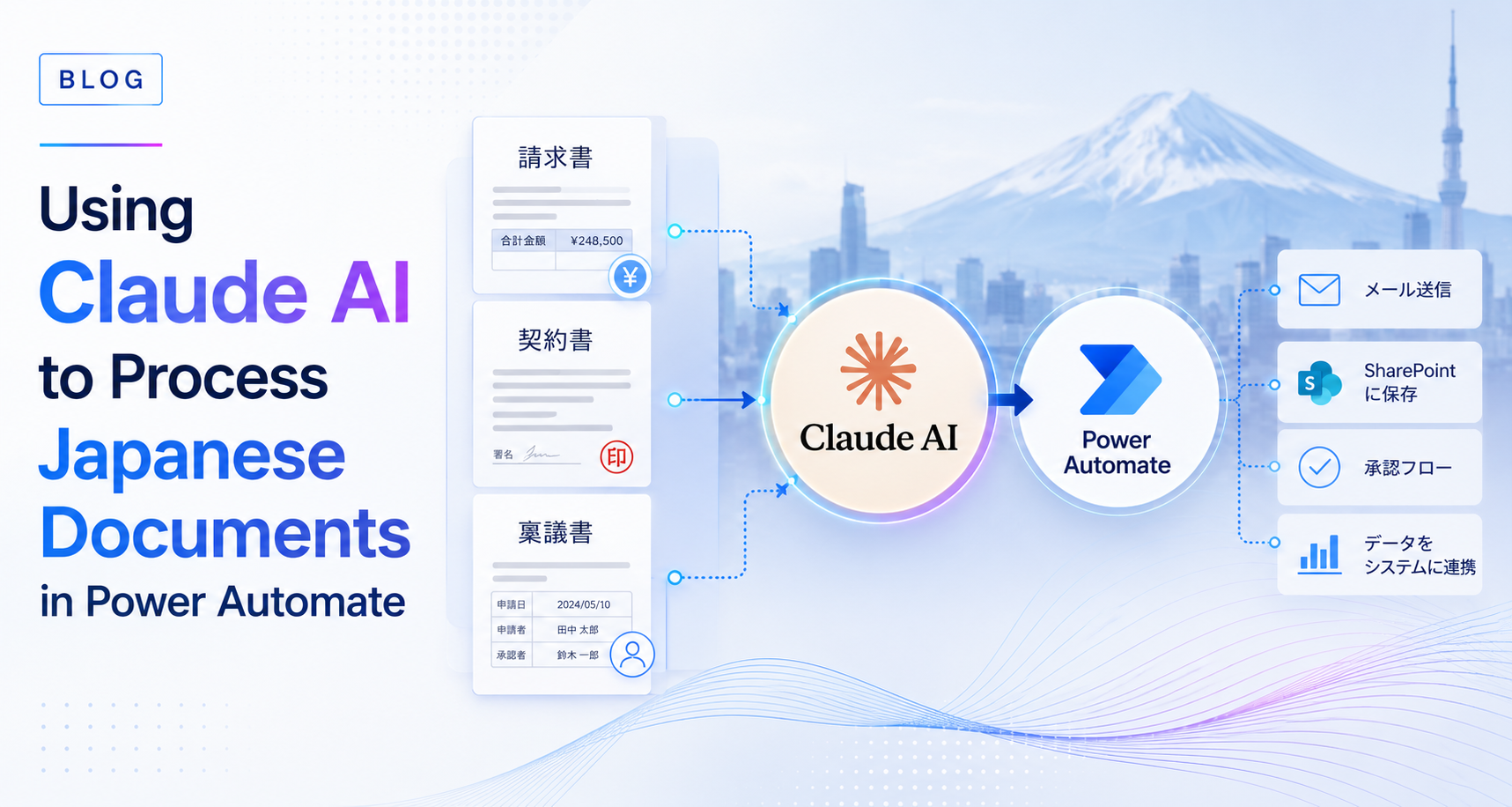
This blog will cover the following points:
- Introduction
- Why Claude Handles Japanese Documents Better Than Standard Tools
- Prerequisites Before You Build
- Step-by-Step: Connecting Claude to Power Automate via HTTP
- Pro Tips for Japanese Document Processing
- Connecting Output to Business Central
- Conclusion
Introduction
Processing Japanese-language documents inside Microsoft Power Automate is one of the most common challenges finance and operations teams at foreign companies in Japan face. Invoices arrive in Japanese with Reiwa-era dates and consumption tax fields. Contracts use formal legal terminology that standard OCR tools misread or ignore. Approval forms follow layouts that no global template was designed to handle.
The standard Power Automate toolkit, AI Builder in particular, struggles with the variability and linguistic complexity of Japanese business documents. Claude AI, connected to Power Automate via the HTTP action or a Custom Connector, solves this cleanly. Claude’s deep language awareness makes it well-suited for handling Japanese text including legal contracts, invoices, and handwritten forms.
This blog walks through exactly how to set up and use that integration, with practical guidance for Japan-based Microsoft partners and the foreign company teams they support.
Why Claude Handles Japanese Documents Better Than Standard Tools
Standard document processing tools rely on template matching. They extract data from fields they have been trained to recognise in predictable layouts. Japanese business documents break this model in several ways.
Japanese invoices use a range of vendor-specific layouts, with date fields in Reiwa era format, consumption tax presented under Japan’s qualified invoice system, and vendor names in kanji that do not map cleanly to Western ERP vendor masters. Contracts use keigo, the formal register of Japanese, with context-dependent terminology that changes meaning depending on surrounding clauses. Approval forms used inside Japanese organisations often mix printed and handwritten elements.
Claude approaches documents as a reasoning model rather than a template-matching engine. It reads the document, understands context across the full page, and returns structured output regardless of layout variation. For Japanese business documents specifically, this is the difference between an extraction tool that fails unpredictably and one that works consistently across the variety of formats a Japan operation actually receives.
Prerequisites Before You Build
Two things are required before building the integration.
First, an Anthropic API key. Sign up at the Anthropic Console at console.anthropic.com and generate an API key. Store this key securely, either in Azure Key Vault or using Power Automate’s secure inputs feature. Never expose it in plain text within a flow.
Second, a Power Automate Premium license. The HTTP action, which is the recommended method for calling the Claude API directly, requires a premium connector license. If your organisation is already running Power Automate with premium connectors for Business Central or other integrations, this requirement is already met. Alternatively, a Custom Connector can be built once and reused across all flows in the environment, which is the recommended approach for production deployments where multiple flows will call Claude.
Step-by-Step: Connecting Claude to Power Automate via HTTP
The integration follows four stages.
Stage 1: Extract and decode the document. Your flow needs to capture the Japanese document and convert it into a readable text format. Use the File Content from a trigger such as “When a file is created in SharePoint” or “Get attachment” from an Outlook trigger. If the document is an image or a scanned PDF, use Power Automate’s AI Builder Document Processing step to perform the initial OCR and extract the Japanese characters before passing the text to Claude.
Stage 2: Configure the HTTP action. Add a new step to your flow and select the HTTP action. Configure it as follows: Method set to POST, URI set to https://api.anthropic.com/v1/messages, and Headers including x-api-key referencing your securely stored API key, anthropic-version set to 2023-06-01, and Content-Type set to application/json. In the Body, pass a JSON payload containing the model, max tokens, and your message content. Use dynamic content from the document extraction step to pass the actual document text into the prompt.
Stage 3: Design the prompt for Japanese documents. Prompt clarity matters significantly for Japanese documents because the content is highly context-dependent, with specific uses of honorifics and keigo that affect meaning. Be explicit with Claude about the output format you expect. For invoices, instruct Claude to extract the invoice number, issue date in YYYY-MM-DD format, vendor name, line items, subtotal, consumption tax amount, and qualified invoice registration number, returned as a JSON object. For contracts, instruct Claude to summarise obligations, identify key dates, flag non-standard clauses, and translate specific legal terms into English. Keep an eye on token limits: Japanese text is more token-dense than English, so ensure the extracted document text does not exceed the context limit for the model you select.
Stage 4: Parse the Claude response. Add a Parse JSON step after the HTTP action. Define a schema matching the JSON structure Claude returns. This converts Claude’s output into individual variables that your flow can act on, routing each field to the correct destination in Business Central, SharePoint, or a Teams approval request.
Pro Tips for Japanese Document Processing
Three practical considerations improve output reliability in a Japan context.
For handwritten or scanned documents, ensure the OCR pre-processing step is highly accurate before passing text to Claude. Low-quality OCR output compounds into extraction errors downstream that Claude cannot fully recover from.
For dates, explicitly instruct Claude in the prompt to normalise all date formats to YYYY-MM-DD. Japanese documents may present dates in Reiwa era format, Gregorian format, or a combination of both within the same document. Consistent normalisation prevents errors in Business Central and any downstream system expecting a standard date format.
For vendor names, instruct Claude to return the Japanese name in kanji exactly as it appears in the document alongside a romanised version. This dual-format output gives your Business Central vendor matching logic the best chance of finding the correct vendor master record without manual intervention.
Connecting Output to Business Central
Once Claude’s JSON output is parsed into variables, Power Automate routes the data directly into Dynamics 365 Business Central. Purchase invoices are created or matched against existing purchase orders. Vendor names are cross-referenced against the vendor master. Consumption tax amounts are validated against line item totals before posting.
Items that fail validation or fall above a defined approval threshold are routed to a Teams approval request with Claude’s extraction summary attached. The reviewing accountant sees the key figures, the flagged issue, and Claude’s explanation without needing to open the original Japanese document. Once approved, the flow posts the validated entry to Business Central automatically.
This architecture removes the manual data entry step that currently occupies a significant portion of accounts payable time in most Japan subsidiaries, while preserving the human oversight that financial governance requires.
Conclusion
Connecting Claude AI to Power Automate via HTTP gives Japan-based operations teams a practical, production-ready method for processing Japanese-language documents at scale. The combination of Claude’s language reasoning and Power Automate’s workflow orchestration handles the document variety, bilingual complexity, and approval routing that standard automation tools were not built for.
For foreign companies running Dynamics 365 Business Central in Japan, this integration sits naturally inside the Microsoft stack already in place, with no new platform and no additional vendor in the data chain.
Sysamic K.K. is a Tokyo-based Microsoft Dynamics 365 Business Central partner specialising in Power Automate and AI integrations for European and North American companies operating in Japan. We design and implement Claude-powered document processing workflows, bilingual approval flows, and Business Central integrations with full attention to Japan’s compliance requirements and operational complexity. Email us at info@sysamic.com or fill out our contact form here to get in touch.